Santa Hat PNG Downloads
Choose from six hand-painted Christmas hat styles and download the transparent PNG you want. These are the same hats used in our photo editor. Use them in Canva, Photoshop, slides, stickers or video thumbnails, or open the editor to try a hat on a photo.
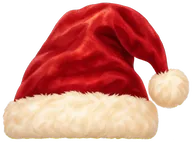
Classic Santa hat
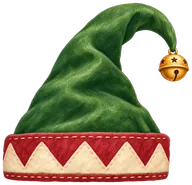
Elf hat
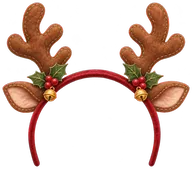
Reindeer antlers
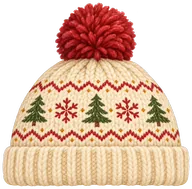
Knit Christmas beanie
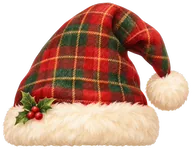
Tartan Santa hat
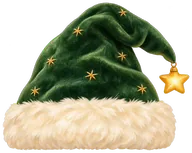
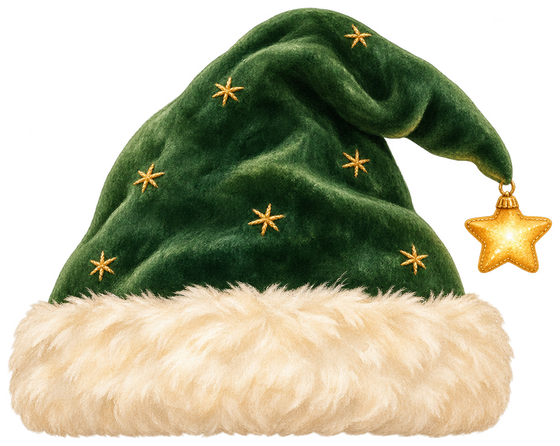
Starry green Santa hat
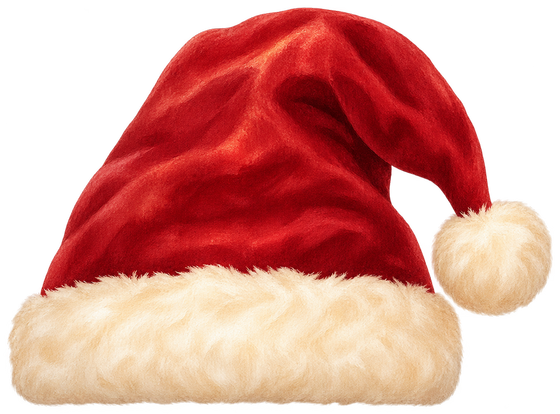
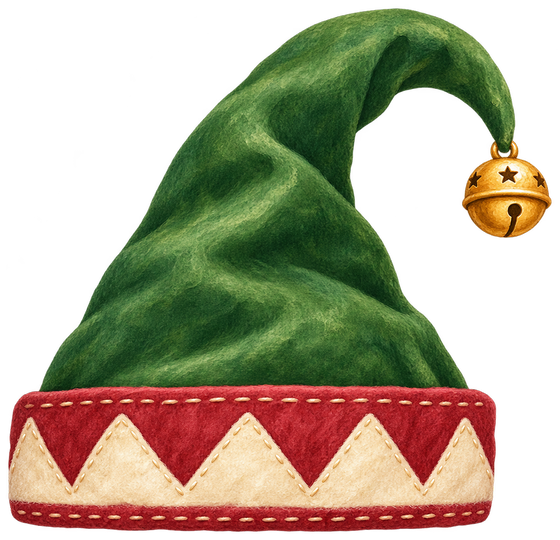
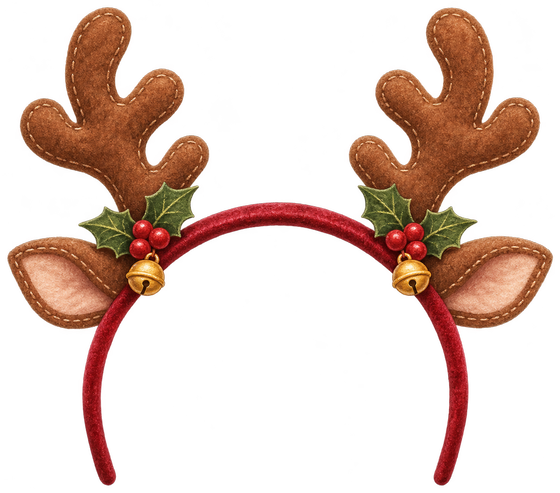
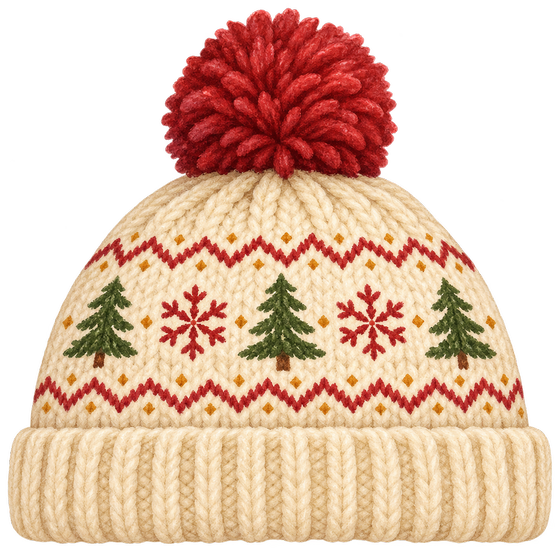
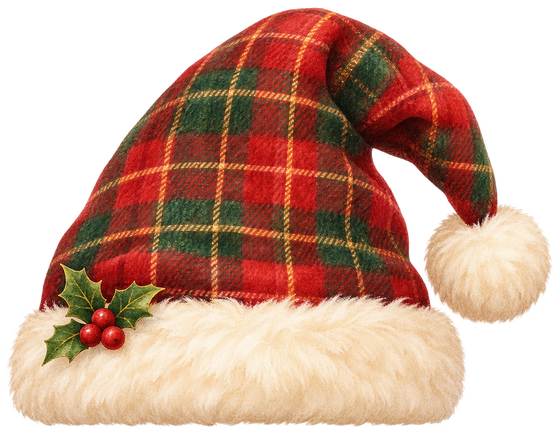
Six Christmas hat PNG styles to choose from
The classic Santa hat has a red crown and a white brim for a familiar Christmas look. The tartan Santa hat adds a pattern, while the starry green hat gives you a different color to work with. Each is a separate PNG file, so you can download the style you want without taking a screenshot of the preview.
The collection also includes a green elf hat, a knit Christmas beanie and reindeer antlers. For a set of pictures, you can give each person a different hat. All six designs are hand-painted for the Santa hat maker and available through the download buttons above. You will find the same style names in the photo editor.
What a transparent Santa hat PNG contains
A transparent PNG keeps the visible hat and leaves the surrounding area clear. The checkerboard behind each preview is there to show that transparency; it is not part of the downloaded hat. Place the file over a photograph or a colored shape in your design program and the background should show through around the hat.
Each downloadable image is 560 pixels wide, with a height that follows the shape of that design. The antlers, beanie and folded hats do not all have the same proportions. Keep those proportions when resizing. If you stretch the width and height separately, the brim can look too flat or the hat can appear longer than it should.
Use a Santa hat overlay in Canva
Download the PNG to your device, then upload that saved file into your Canva design. Put your photo on the canvas first and add the hat above it. Resize the hat from a corner so its proportions stay together. Move the brim toward the forehead and turn the hat slightly if the person's head is tilted.
Zoom in to check the placement, then look at the design at the size you intend to use. A profile picture may be shown much smaller than the editing canvas. Make sure the hat still reads clearly and that its tip will not be cut off by the final crop. For a group, add a separate copy for each person who needs a hat.
Place the PNG in Photoshop, slides or thumbnails
In Photoshop, place the downloaded PNG above your photo as a separate layer. Keeping it separate lets you move and resize it without changing the original picture. Fit the brim first, then adjust the angle. When the head is turned, you may need to work on the layer's shape or mask so the hat sits naturally with the hair.
For a slide or video thumbnail, leave some room between the hat and any title text. Check the design against both light and dark backgrounds because pale trim can disappear against a pale area. Save a working copy with the layers intact if you want to adjust the placement later. The downloaded hat itself has no background to remove before you start.
Try a hat on a photo in the browser
If you want to make a Christmas profile picture, the photo editor gives you these same six styles without assembling a design in another program. Open Try on photo, choose your picture and select a hat in the editor. You can move, resize and rotate it there, and add another hat when more than one person is in the picture.
The editor processes your photo in your browser and creates a square PNG result. That finished picture is different from the standalone transparent hat downloaded here. Choose this page when you need the hat as an asset for your own design, and choose the editor when you want a photo with the hat already placed on it.
Santa hat PNG questions
Are these Santa hat PNG downloads free?
Yes. Every hat in this collection is available as a free transparent PNG. These hand-painted assets are provided for use in Canva, Photoshop, slides, stickers or video thumbnails, matching the uses described by our Santa hat maker. Choose the button beneath the design you want to save its original PNG file.
Why do I see a checkerboard behind the hat?
The checkerboard belongs to the preview area on this page. It helps you see the outline of the transparent image against different tones. Use Download PNG to save the asset itself, rather than saving a screenshot. The downloaded file has an alpha channel that keeps the area around the hat transparent.
Can I change the size of the Santa hat PNG?
Yes, in the design program where you place it. The source images are 560 pixels wide and their heights vary by style. Shrinking a hat for a small picture is usually straightforward. Enlarging a raster PNG beyond its original dimensions can make the painted edges look softer, so check the result at its final size.
How do I add the hat to my photo?
Use a design program to place the PNG as a layer above your photo, or open the linked Santa hat photo editor. The editor lets you upload a picture, choose a hat and adjust its placement in your browser. Downloading a standalone PNG from this page does not upload or edit a photo.
Make a picture, then send a Christmas wish
After making your Christmas design, you can create a Deco My Tree Christmas tree and invite friends to leave messages. Keep your PNG files for your own designs and share the tree link when you want to collect greetings. The tree does not need an edited profile picture to get started.
Create a Christmas tree